
Home / Help / G-SOFT Inventory Management System
Topic 14 of 14මාතෘකාව 14 / 14
Back up your data
Keep copies of your data. If a PC breaks, a backup brings everything back.
Step 1 of 2පියවර 1 / 2
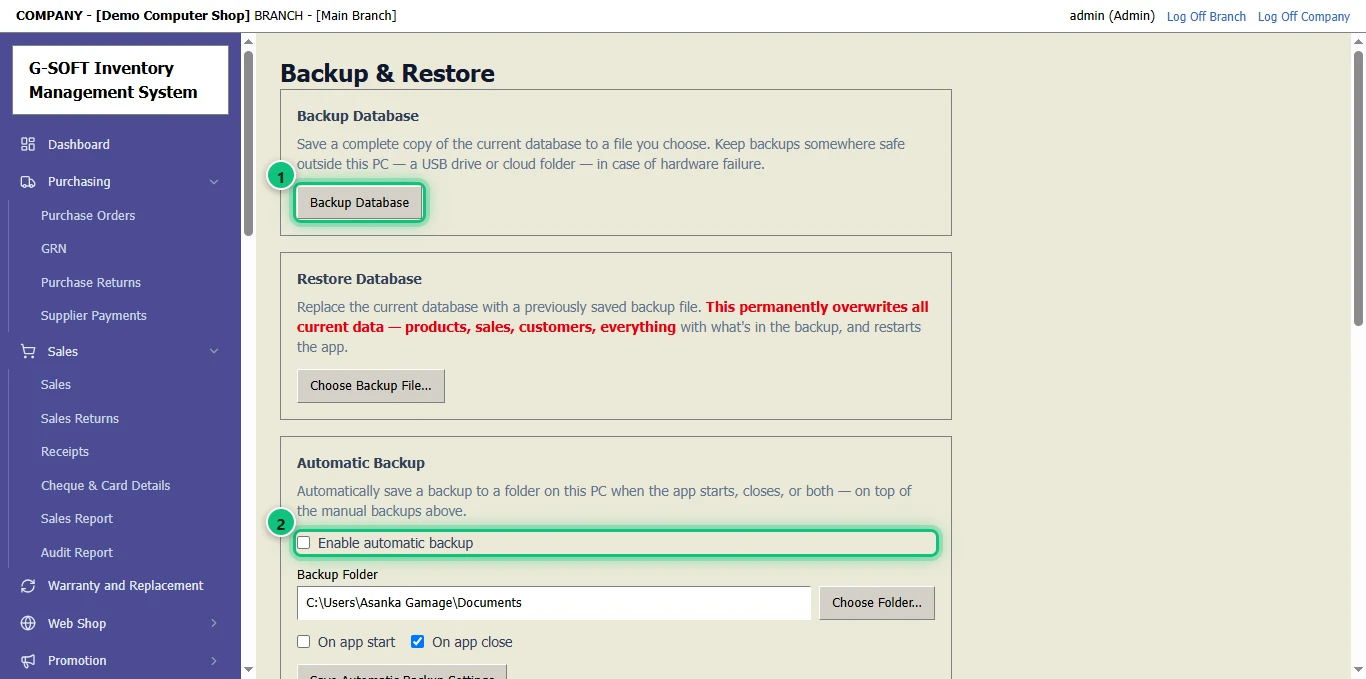
- Open Setting → Backup & Restore.
- Backup Database 1 saves a copy now — choose a USB drive or another folder.
- Automatic backup 2: tick it, choose a folder, and the program backs up by itself when it opens or closes.
- Setting → Backup & Restore විවෘත කරන්න.
- Backup Database 1 දැන් පිටපතක් සුරකියි — USB ධාවකයක් හෝ වෙනත් ෆෝල්ඩරයක් තෝරන්න.
- ස්වයංක්රීය උපස්ථය 2: සලකුණු කර ෆෝල්ඩරයක් තෝරන්න — වැඩසටහන විවෘත වන විට හෝ වසන විට තනිවම උපස්ථ කරයි.
Step 2 of 2පියවර 2 / 2
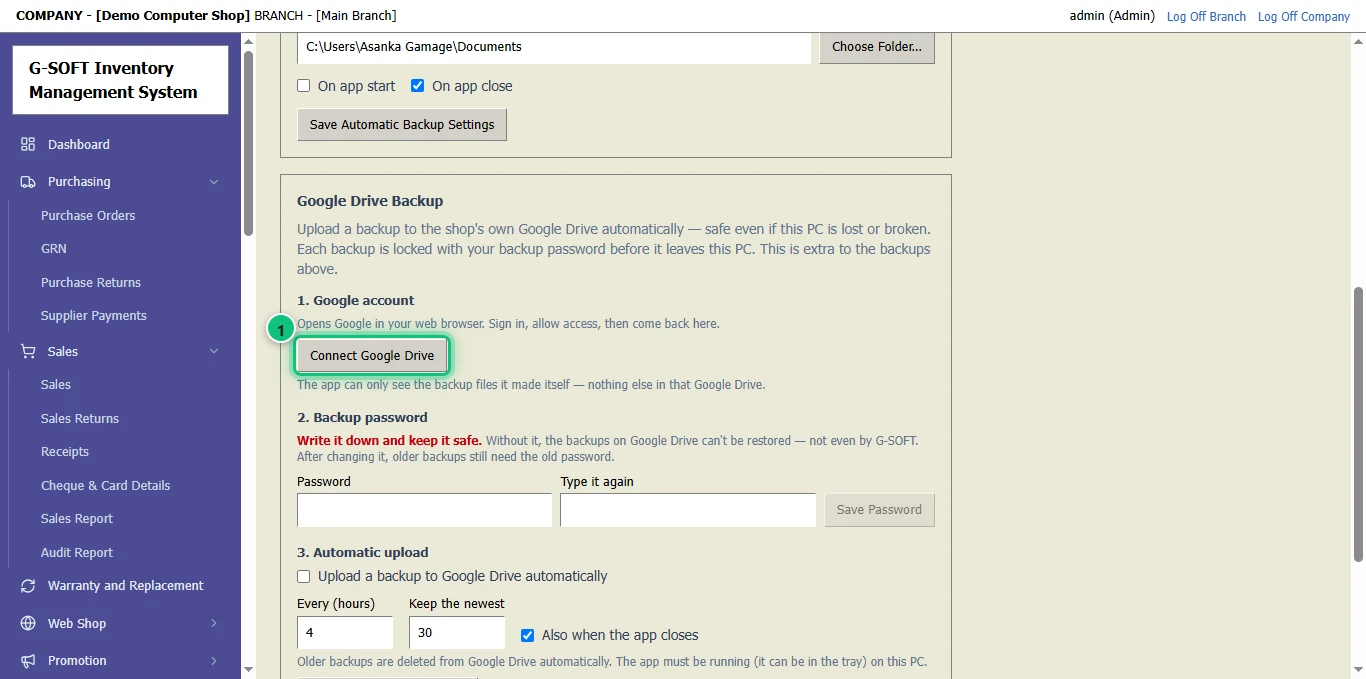
- Google Drive Backup: click Connect Google Drive 1, sign in to your Google account, and set a backup password. Encrypted copies then go to your own Google Drive.
- To bring data back, use Restore Database on the same page. A backup is also made by itself before every software update.
- Google Drive Backup: Connect Google Drive 1 ක්ලික් කර ඔබේ Google ගිණුමට ඇතුළු වී, උපස්ථ මුරපදයක් දෙන්න. සංකේතනය කළ පිටපත් ඔබේම Google Drive එකට යයි.
- දත්ත නැවත ලබාගැනීමට එම පිටුවේම Restore Database භාවිතා කරන්න. සෑම මෘදුකාංග යාවත්කාලීනයකටම පෙර ද උපස්ථයක් තනිවම සෑදේ.