
Home / Help / G-SOFT Inventory Manager
Topic 14 of 17මාතෘකාව 14 / 17
Record an expense
Write down what the shop spends — rent, electricity, transport — so the Profit & Loss report shows your real profit.
Step 1 of 3පියවර 1 / 3
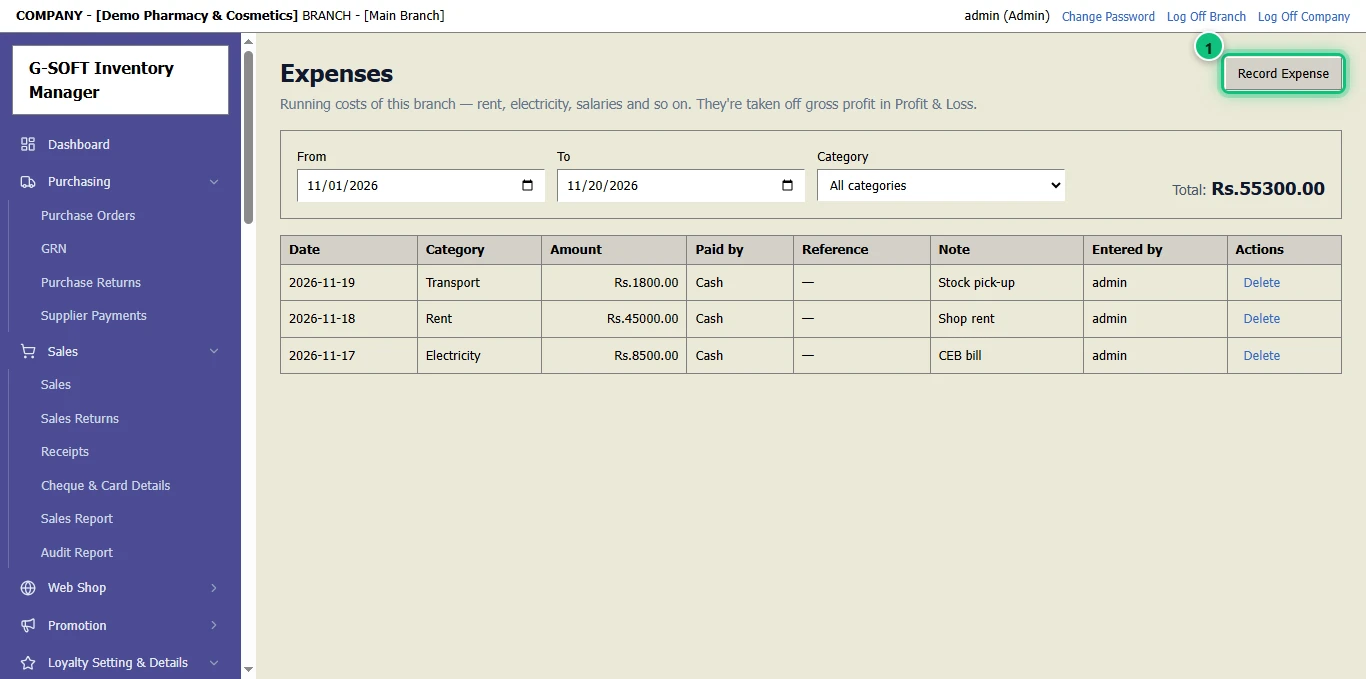
- Open Accounts → Expenses.
- Click Record Expense 1.
- Accounts → Expenses විවෘත කරන්න.
- Record Expense 1 ක්ලික් කරන්න.
Step 2 of 3පියවර 2 / 3
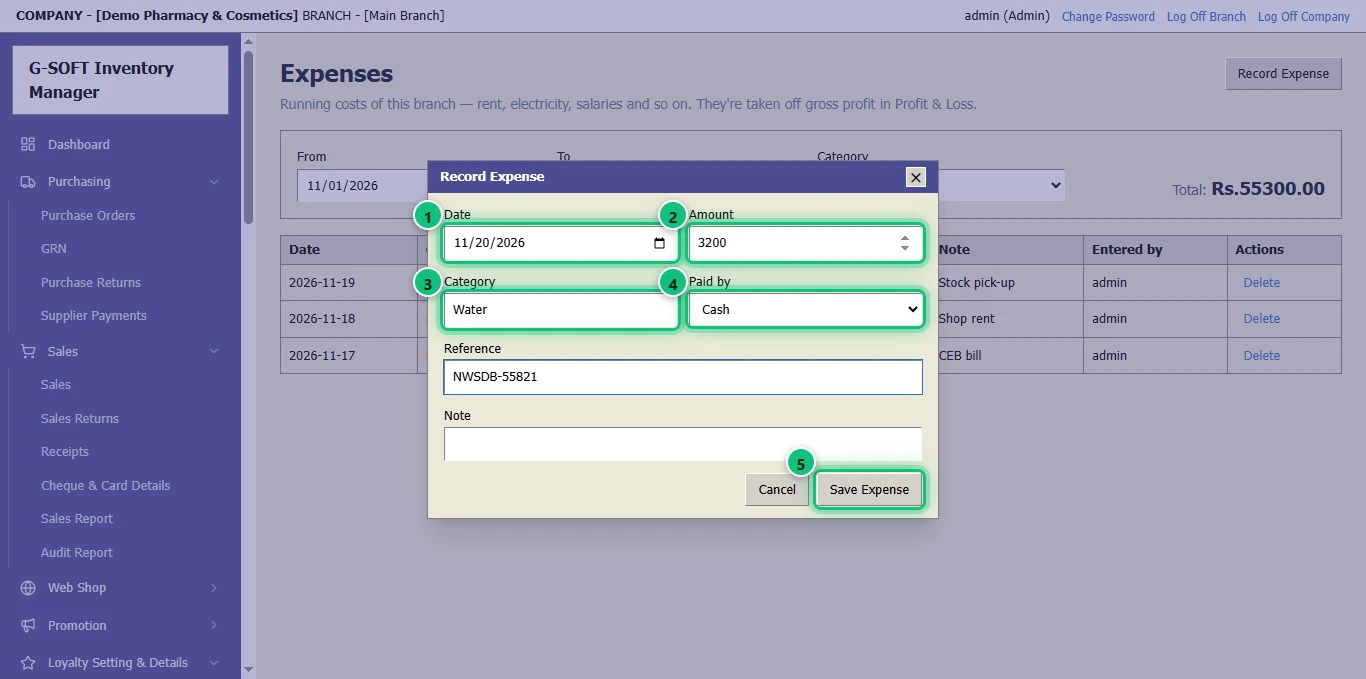
- Check the Date 1 and type the Amount 2.
- Choose a Category 3 — pick one from the list or type a new one, such as Rent, Electricity or Water.
- Choose how it was Paid by 4, add the bill number if you have one, and click Save Expense 5.
- Date 1 පරීක්ෂා කර Amount 2 ටයිප් කරන්න.
- Category 3 තෝරන්න — ලැයිස්තුවෙන් තෝරන්න හෝ කුලිය, විදුලිය, ජලය වැනි නවයක් ටයිප් කරන්න.
- ගෙවූ ආකාරය Paid by 4 තෝරා, බිල් අංකයක් ඇත්නම් එක් කර Save Expense 5 ක්ලික් කරන්න.
Step 3 of 3පියවර 3 / 3
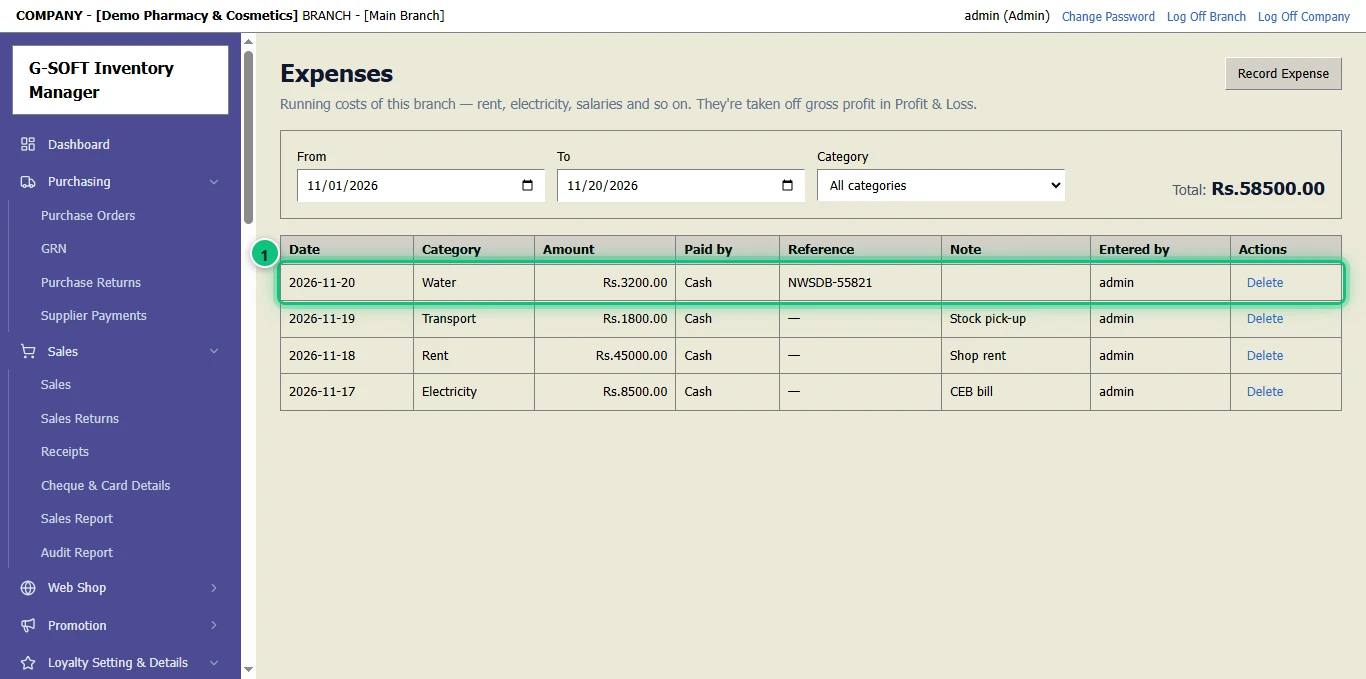
- The expense is listed 1. Choose dates and a category at the top to see what you spent.
- Accounts → Profit & Loss takes sales, cost of goods and these expenses together and shows your profit for any dates.
- වියදම ලැයිස්තුගත වේ 1. ඔබ වියදම් කළ දේ බැලීමට ඉහළින් දින සහ වර්ගය තෝරන්න.
- Accounts → Profit & Loss විකුණුම්, භාණ්ඩ පිරිවැය සහ මෙම වියදම් එකට ගෙන ඕනෑම දින පරාසයක ලාභය පෙන්වයි.