
Home / Help / G-SOFT Play Zone
Topic 7 of 16මාතෘකාව 7 / 16
Set prices: time rates, packages and add-ons
Decide what a visit costs: the price by time, ready-made packages, and extras like rides and socks.
Step 1 of 3පියවර 1 / 3
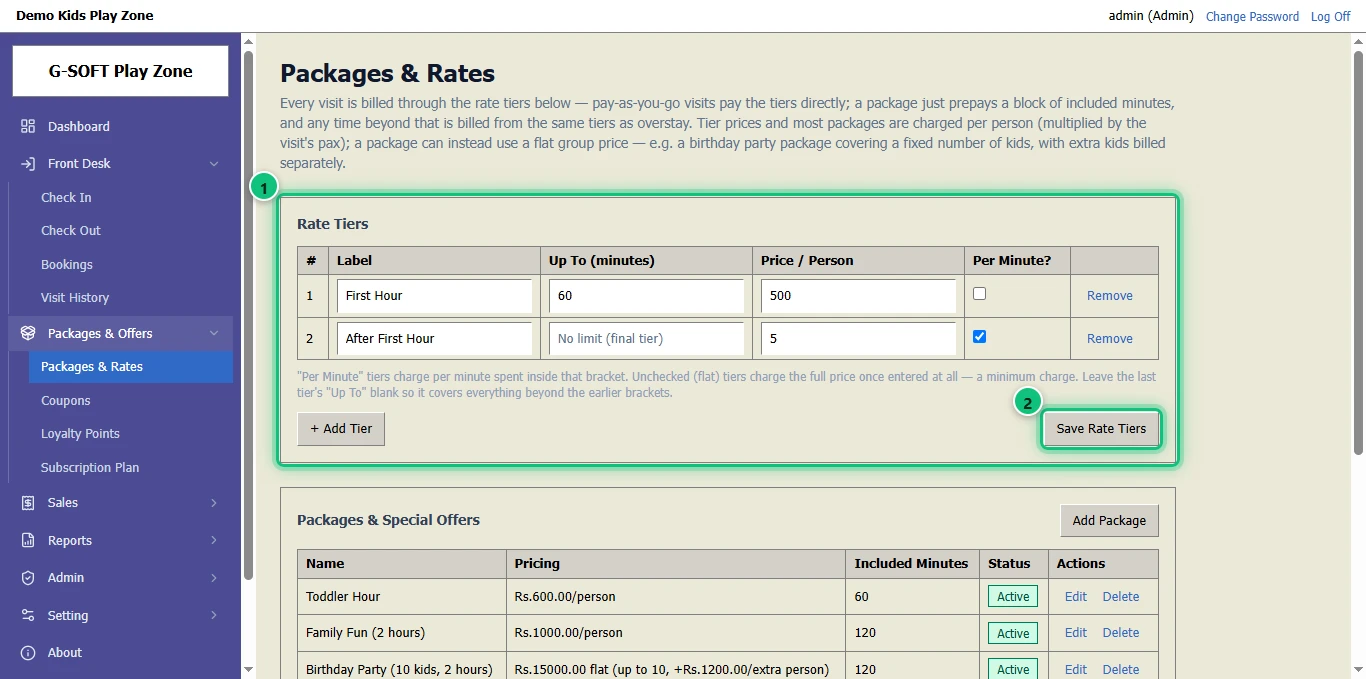
- Open Packages & Offers → Packages & Rates.
- Rate Tiers 1 is the price for visitors without a package: for example Rs.500 for the first hour, then Rs.5 a minute after that. Change a price or add a tier with + Add Tier.
- Click Save Rate Tiers 2.
- Packages & Offers → Packages & Rates විවෘත කරන්න.
- Rate Tiers 1 යනු පැකේජයක් නැති අමුත්තන්ගේ මිලයි: උදා: පළමු පැයට Rs.500, ඉන්පසු මිනිත්තුවකට Rs.5. මිලක් වෙනස් කරන්න හෝ + Add Tier මගින් පියවරක් එක් කරන්න.
- Save Rate Tiers 2 ක්ලික් කරන්න.
Step 2 of 3පියවර 2 / 3
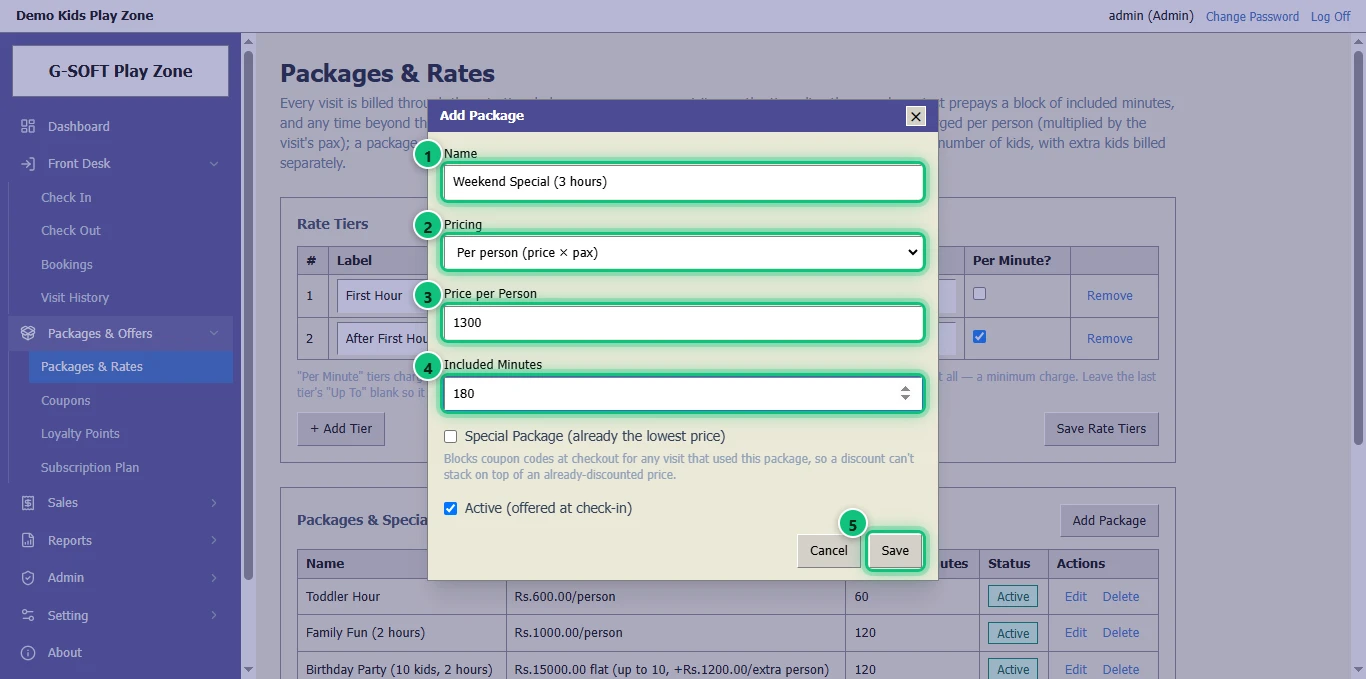
- Under Packages & Special Offers, click Add Package.
- Type the Name 1.
- Pricing 2: Per person (price × number of children) or a Flat group price — for a birthday party, with how many children it includes and the price for each extra child.
- Type the Price 3 and the Included Minutes 4. Time over that is charged at the rate tiers.
- Click Save 5. The package is offered at check-in.
- Packages & Special Offers යටතේ Add Package ක්ලික් කරන්න.
- Name 1 ඇතුළත් කරන්න.
- Pricing 2: Per person (මිල × දරුවන් ගණන) හෝ Flat group price — උපන්දින සාදයකට, එයට ඇතුළත් දරුවන් ගණන සහ අමතර දරුවෙකුට මිල සමඟ.
- Price 3 සහ Included Minutes 4 ඇතුළත් කරන්න. ඊට වැඩි කාලය rate tiers අනුව අය කෙරේ.
- Save 5 ක්ලික් කරන්න. පැකේජය check-in හිදී ලබා දේ.
Step 3 of 3පියවර 3 / 3
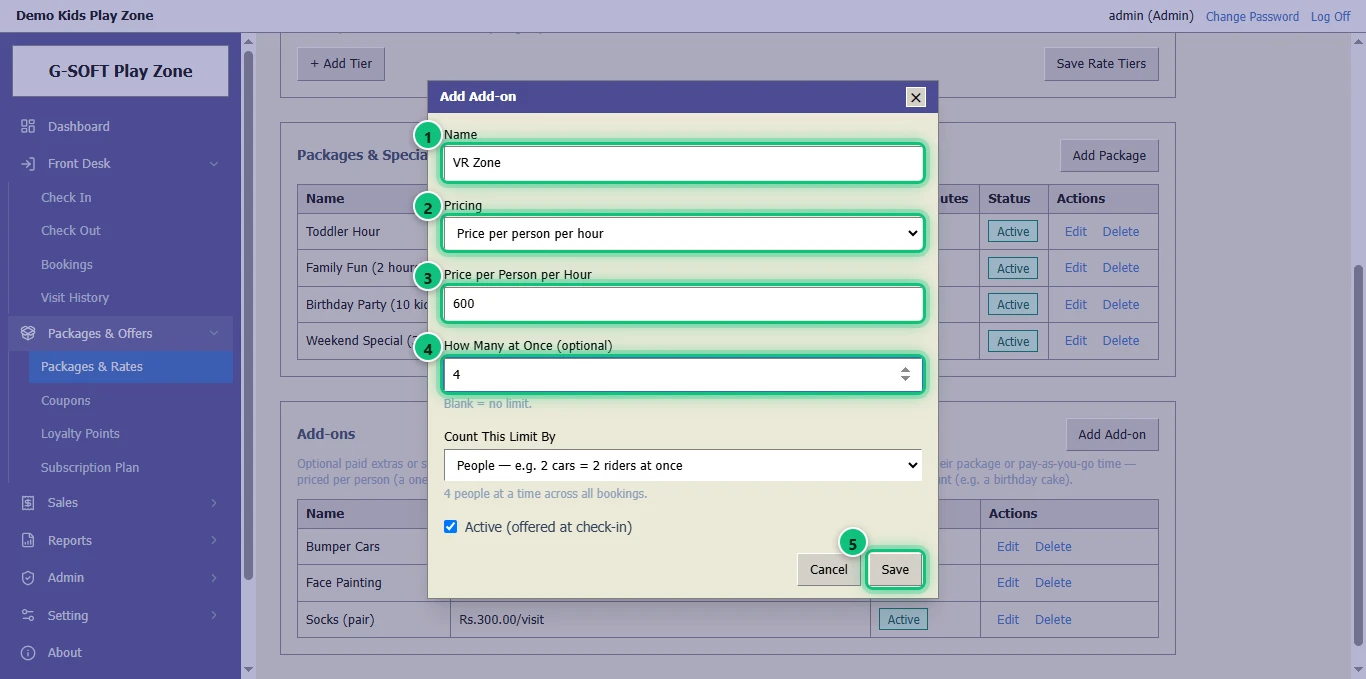
- Under Add-ons, click Add Add-on.
- Type the Name 1 and choose the Pricing 2: once per person, per person per hour, or one flat price for the whole visit.
- Type the Price 3.
- How Many at Once 4: for a ride with limited places, the program warns when it is full.
- Click Save 5.
- Add-ons යටතේ Add Add-on ක්ලික් කරන්න.
- Name 1 ඇතුළත් කර Pricing 2 තෝරන්න: පුද්ගලයෙකුට එක් වරක්, පුද්ගලයෙකුට පැයකට, හෝ මුළු පැමිණීමටම එක් මිලක්.
- Price 3 ඇතුළත් කරන්න.
- How Many at Once 4: සීමිත ඉඩ ඇති ක්රීඩාවකට, එය පිරුණු විට වැඩසටහන අනතුරු අඟවයි.
- Save 5 ක්ලික් කරන්න.