
Home / Help / G-SOFT Supermarket Manager
Topic 7 of 16මාතෘකාව 7 / 16
Expiry dates and batches
See which batches are about to expire, check every batch of a product, and take an expired or damaged batch out of stock.
Step 1 of 2පියවර 1 / 2
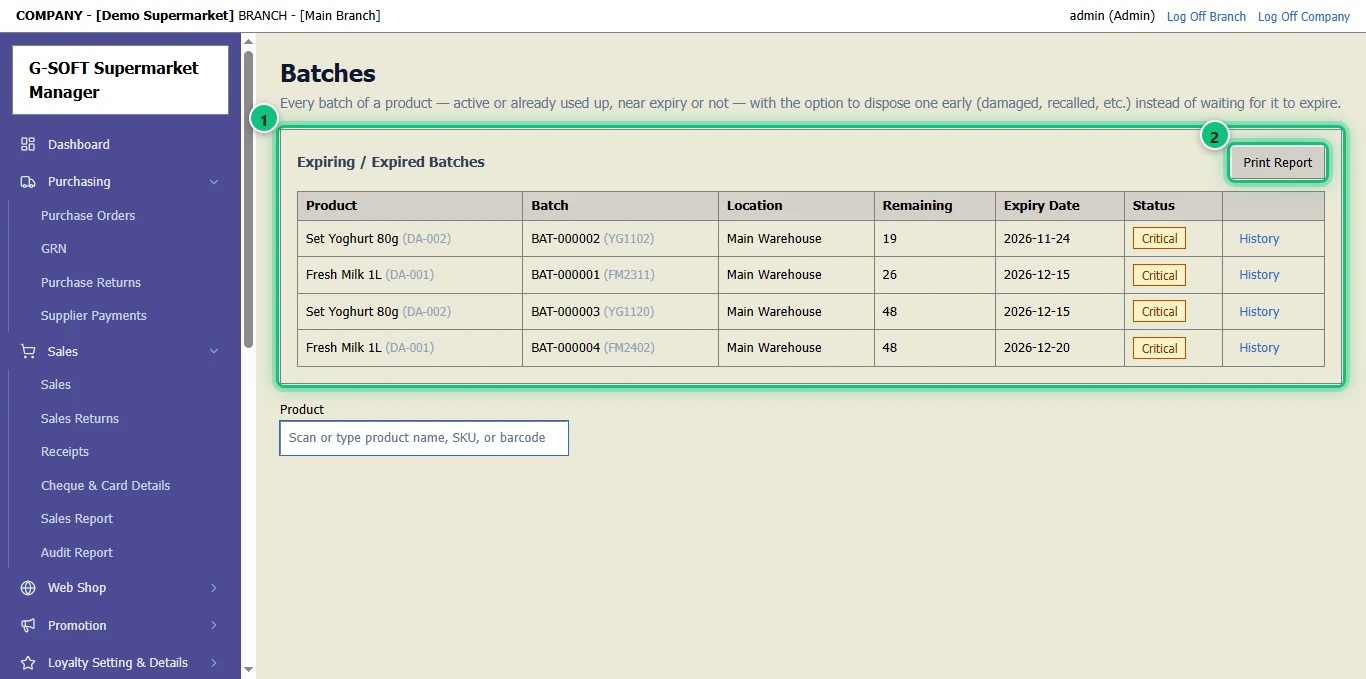
- Open Inventory → Batches.
- Expiring / Expired Batches 1 lists every batch near or past its expiry date, with how many are left. Critical means it expires very soon.
- Print Report 2 prints the list — useful when returning stock to the supplier.
- Inventory → Batches විවෘත කරන්න.
- Expiring / Expired Batches 1 කල් ඉකුත් දිනයට ආසන්න හෝ ඉක්මවූ සෑම බැච් එකක්ම ඉතිරි ප්රමාණය සමඟ පෙන්වයි. Critical යනු ඉතා ඉක්මනින් කල් ඉකුත් වන බවයි.
- Print Report 2 ලැයිස්තුව මුද්රණය කරයි — තොග සැපයුම්කරුට ආපසු දෙන විට ප්රයෝජනවත්.
Step 2 of 2පියවර 2 / 2
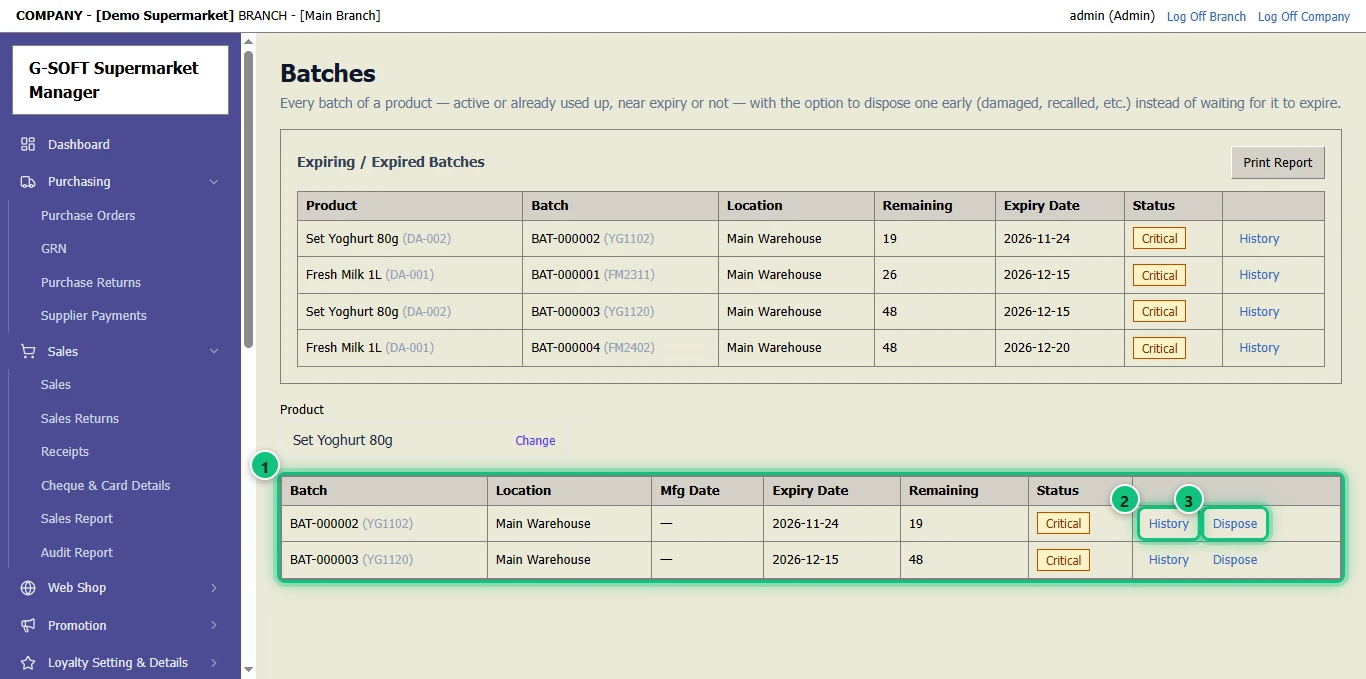
- Type a product name in Product to see every batch of it 1: its expiry date, how many are left and its status.
- History 2 shows where a batch went — received, sold, returned.
- Dispose 3 takes a batch out of stock (expired, damaged or recalled). Type the reason and confirm. Disposed batches are listed in Inventory → Disposed Batches.
- භාණ්ඩයක සෑම බැච් එකක්ම 1 බැලීමට Product හි නම ටයිප් කරන්න: කල් ඉකුත් දිනය, ඉතිරි ප්රමාණය සහ තත්ත්වය.
- History 2 බැච් එකක් ගිය මාර්ගය පෙන්වයි — ලැබුණු, විකුණූ, ආපසු ආ.
- Dispose 3 බැච් එකක් තොගයෙන් ඉවත් කරයි (කල් ඉකුත් වූ, හානි වූ හෝ ආපසු කැඳවූ). හේතුව ටයිප් කර තහවුරු කරන්න. ඉවත් කළ බැච් Inventory → Disposed Batches හි ඇත.