
Home / Help / G-SOFT Supermarket Manager
Topic 12 of 16මාතෘකාව 12 / 16
Give a customer a loyalty card
Loyal customers get a printed card with a QR code. Scanned at the till, it fills in the customer and shows their card discount.
Step 1 of 5පියවර 1 / 5
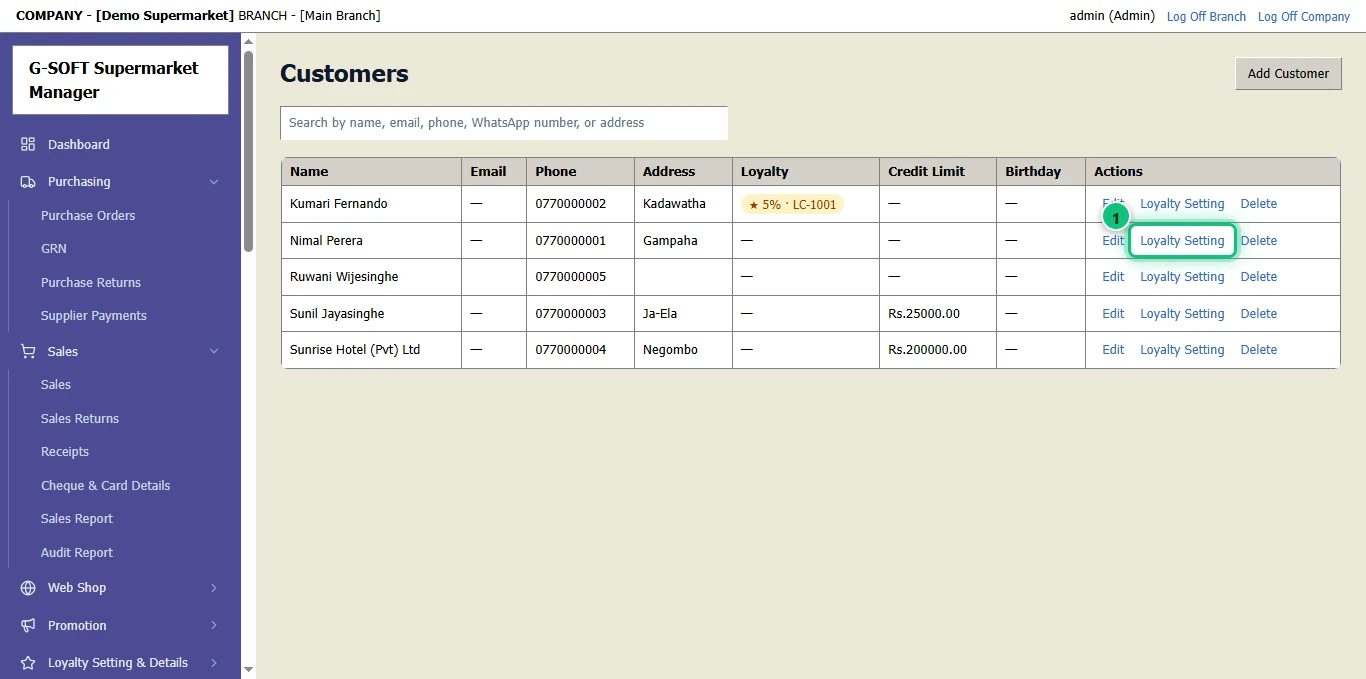
- Open Suppliers and Customer → Customers. (Add the customer first if they are new — see "Add a customer".)
- On the customer’s row, click Loyalty Setting 1.
- Suppliers and Customer → Customers විවෘත කරන්න. (නව ගනුදෙනුකරුවෙකු නම් පළමුව එක් කරන්න — "ගනුදෙනුකරුවෙකු එක් කිරීම" බලන්න.)
- ගනුදෙනුකරුගේ පේළියේ Loyalty Setting 1 ක්ලික් කරන්න.
Step 2 of 5පියවර 2 / 5
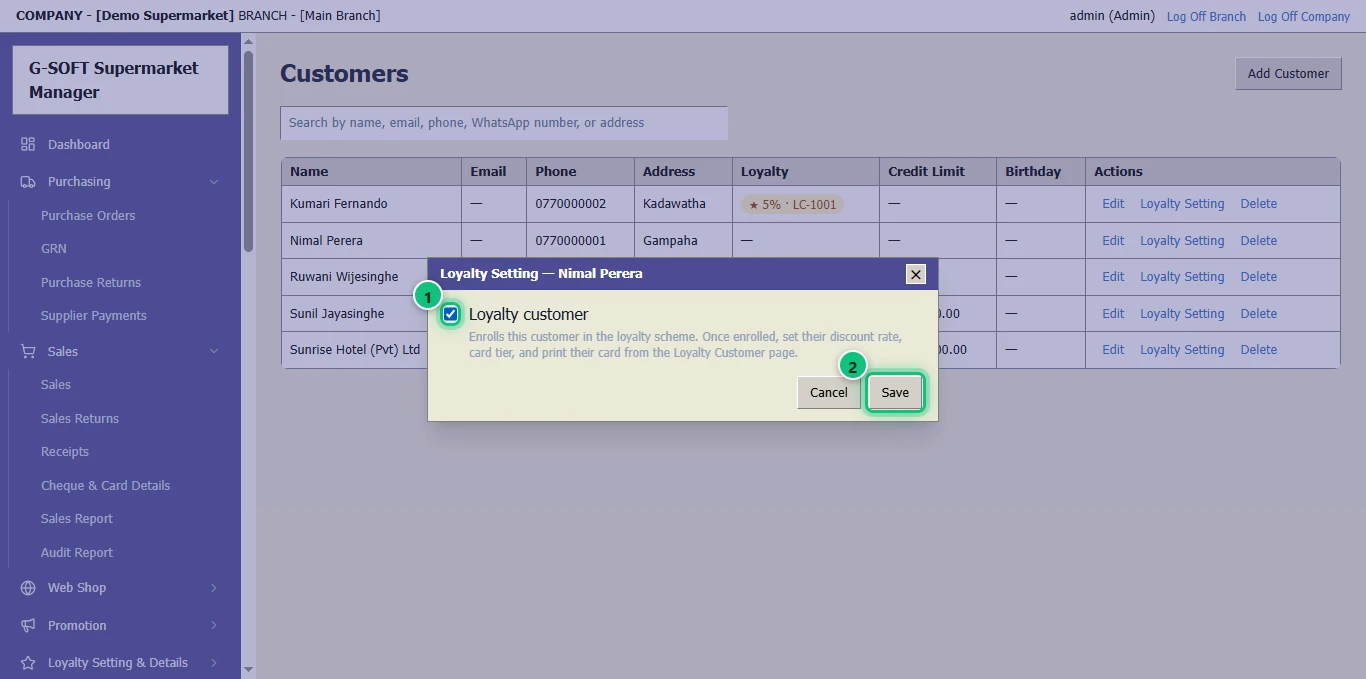
- Tick Loyalty customer 1 and click Save 2. The customer is now a loyalty member.
- Loyalty customer 1 සලකුණු කර Save 2 ක්ලික් කරන්න. ගනුදෙනුකරු දැන් ලෝයල්ටි සාමාජිකයෙකි.
Step 3 of 5පියවර 3 / 5
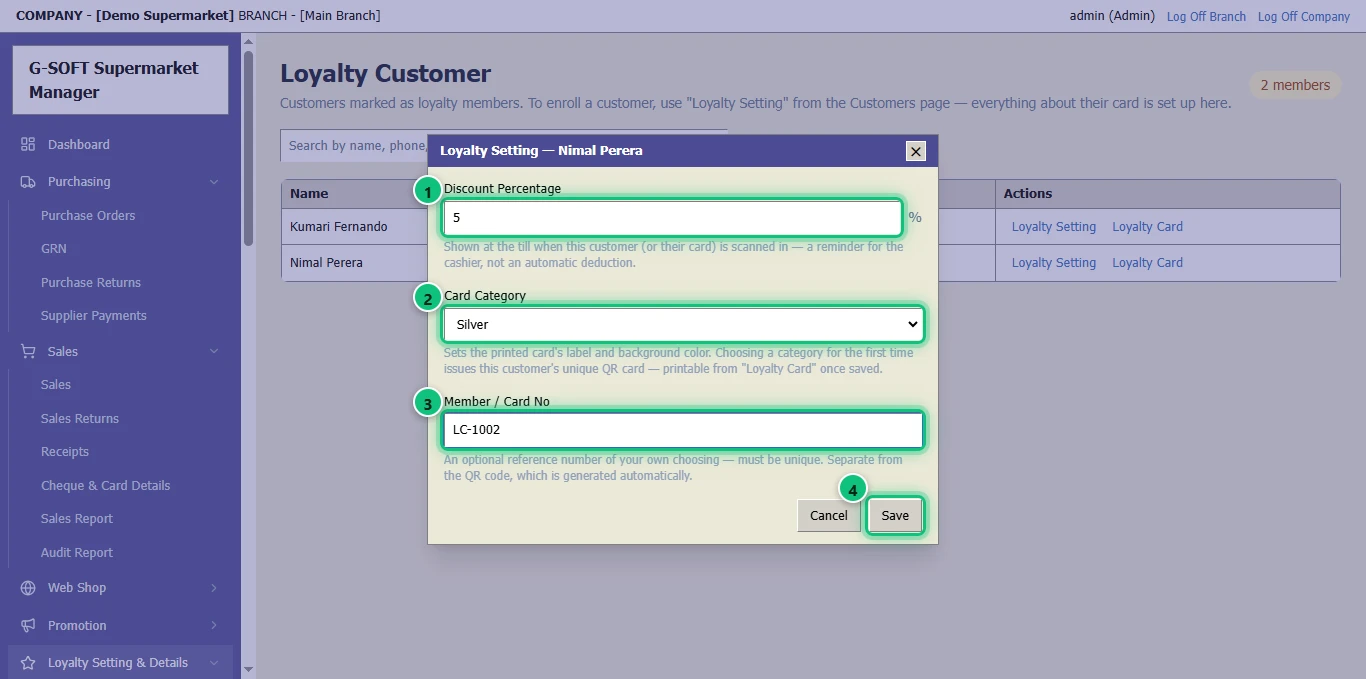
- Open Loyalty Setting & Details → Loyalty Customer and click Loyalty Setting on the customer’s row.
- Set the Discount Percentage 1 they get on every invoice.
- Choose the Card Category 2 — Silver, Gold or Platinum. It sets the card’s colour and label.
- A Member / Card No 3 of your own is optional. Click Save 4.
- Loyalty Setting & Details → Loyalty Customer විවෘත කර ගනුදෙනුකරුගේ පේළියේ Loyalty Setting ක්ලික් කරන්න.
- සෑම ඉන්වොයිසියකටම ඔවුන්ට ලැබෙන Discount Percentage 1 දෙන්න.
- Card Category 2 තෝරන්න — Silver, Gold හෝ Platinum. එය කාඩ්පතේ වර්ණය සහ ලේබලය තීරණය කරයි.
- ඔබේම Member / Card No 3 එකක් අත්යවශ්ය නැත. Save 4 ක්ලික් කරන්න.
Step 4 of 5පියවර 4 / 5
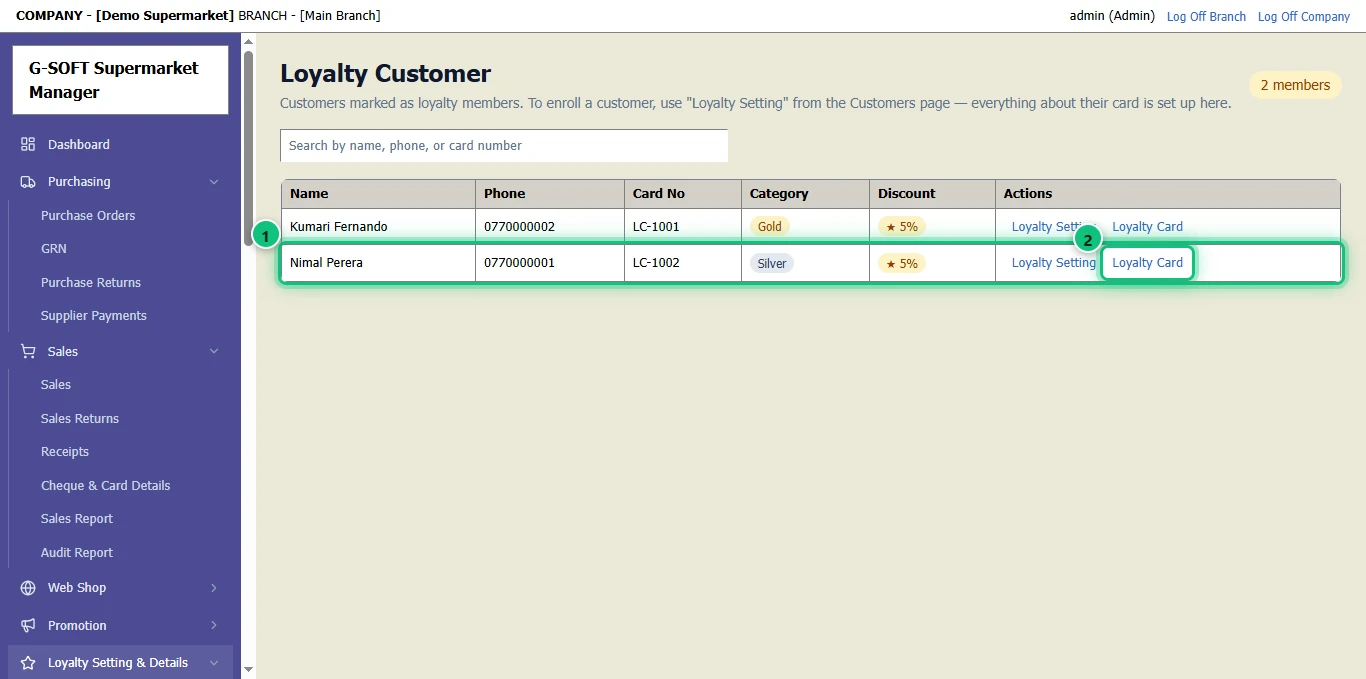
- The customer is listed with their card category and discount 1.
- Click Loyalty Card 2 to print their card.
- ගනුදෙනුකරු ඔවුන්ගේ කාඩ්පත් වර්ගය සහ වට්ටම සමඟ ලැයිස්තුගත වේ 1.
- ඔවුන්ගේ කාඩ්පත මුද්රණය කිරීමට Loyalty Card 2 ක්ලික් කරන්න.
Step 5 of 5පියවර 5 / 5
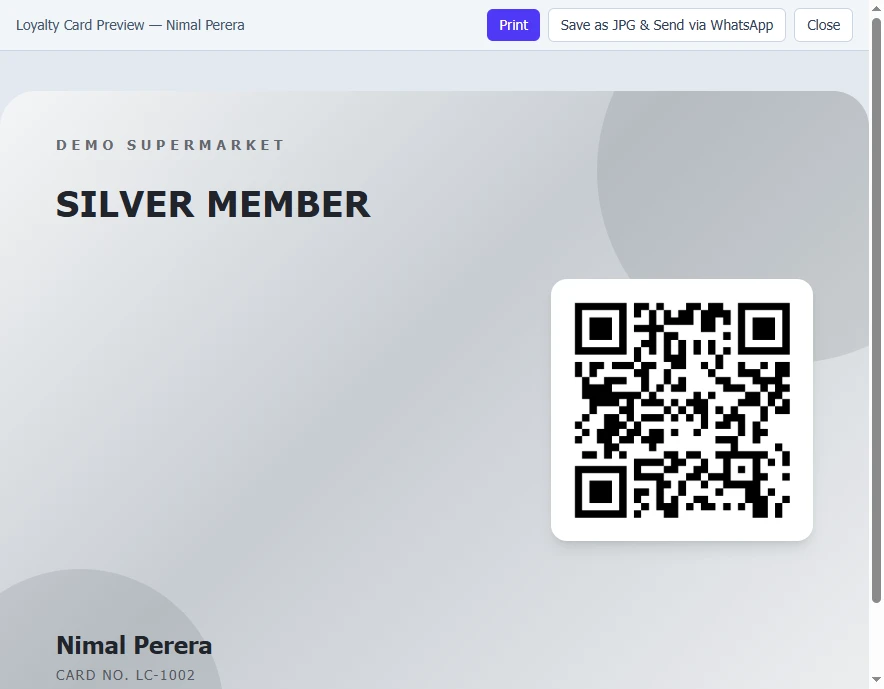
- The card is ready to print, with the customer’s name and QR code. Click Print to print it on card paper, or Save as JPG & Send via WhatsApp to send it to the customer’s phone.
- At the till, scan the card in Scan Loyalty Card on the invoice — see "Make an invoice".
- ගනුදෙනුකරුගේ නම සහ QR කේතය සමඟ කාඩ්පත මුද්රණයට සූදානම්. කාඩ් කඩදාසියක මුද්රණය කිරීමට Print ක්ලික් කරන්න, නැතහොත් ගනුදෙනුකරුගේ දුරකථනයට යැවීමට Save as JPG & Send via WhatsApp ක්ලික් කරන්න.
- කවුන්ටරයේදී ඉන්වොයිසියේ Scan Loyalty Card හි කාඩ්පත ස්කෑන් කරන්න — "ඉන්වොයිසියක් සෑදීම" බලන්න.