
Home / Help / G-SOFT Play Zone
Topic 5 of 16මාතෘකාව 5 / 16
Take a booking
Book a birthday party or a group visit in advance, take an advance payment, and check them in with one click when they arrive.
Step 1 of 4පියවර 1 / 4
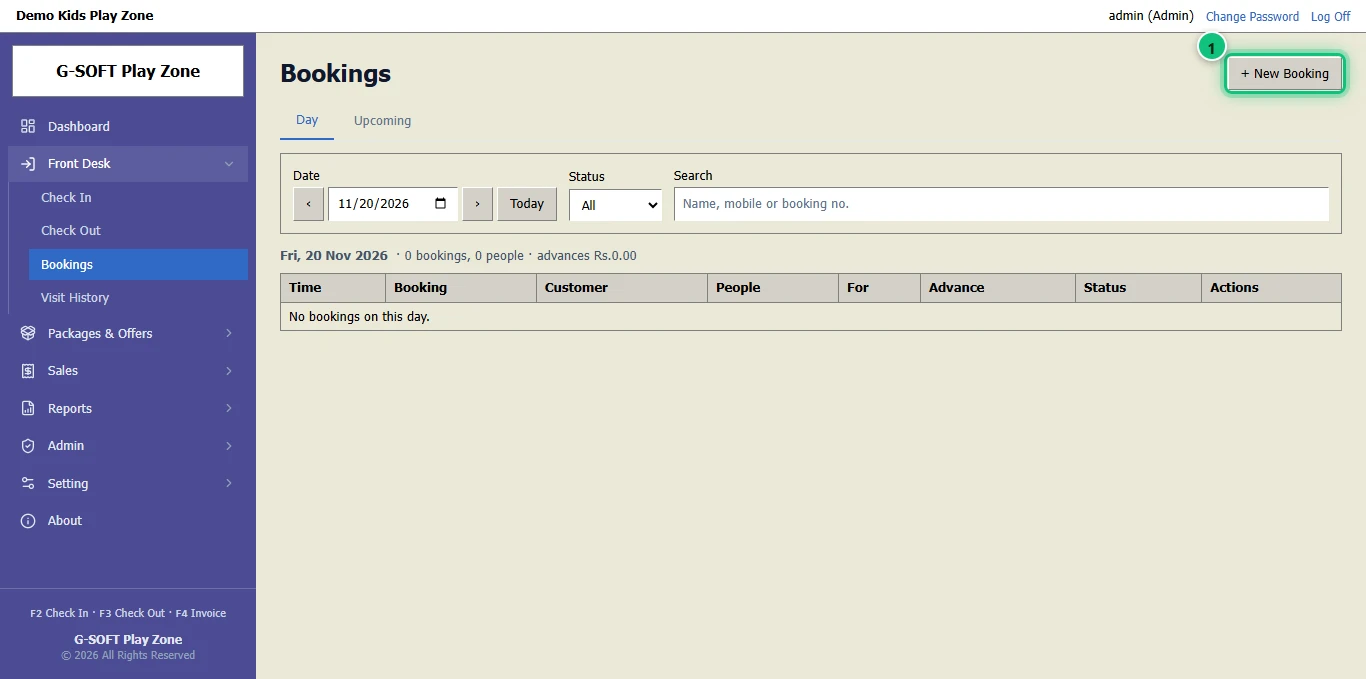
- Open Front Desk → Bookings. Day shows one day’s bookings, Upcoming shows all that are coming.
- Click + New Booking 1.
- Front Desk → Bookings විවෘත කරන්න. Day එක් දිනක වෙන්කිරීම්, Upcoming ඉදිරියට එන සියල්ල පෙන්වයි.
- + New Booking 1 ක්ලික් කරන්න.
Step 2 of 4පියවර 2 / 4
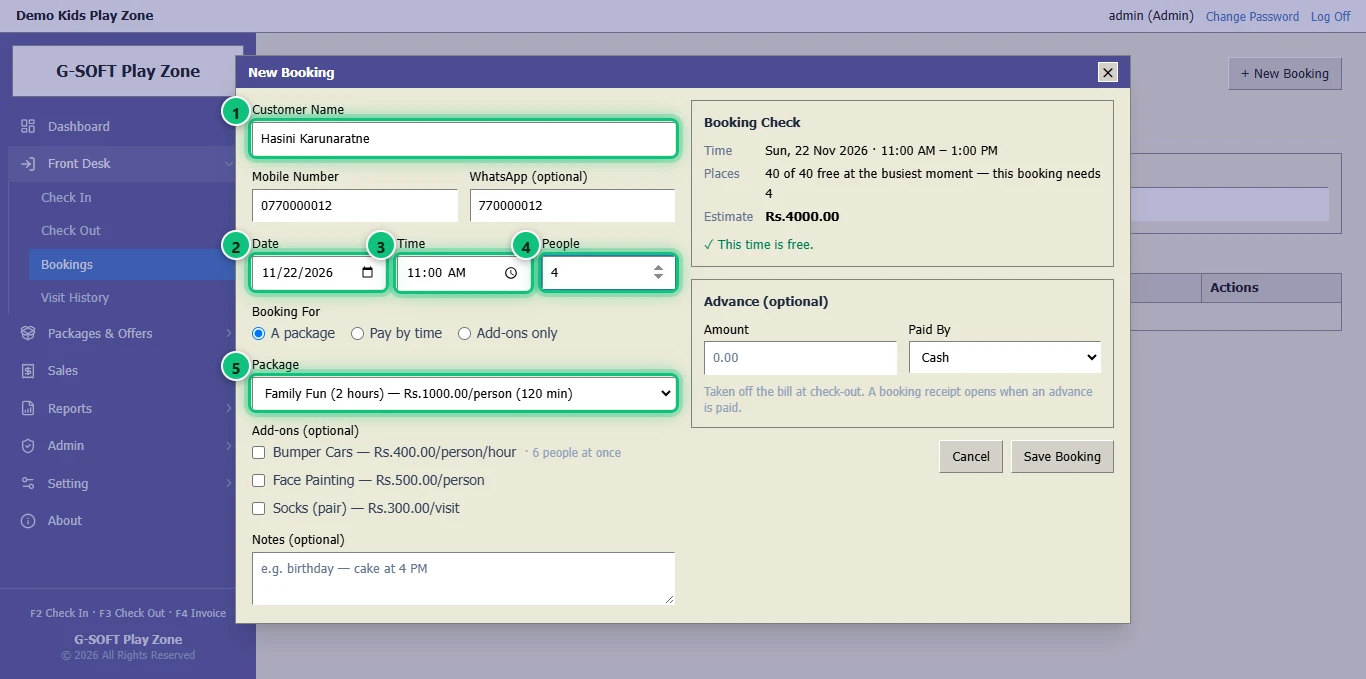
- Type the Customer Name 1, mobile and WhatsApp number.
- Choose the Date 2, Time 3 and number of People 4.
- Choose what they booked: A package 5, Pay by time, or Add-ons only. Tick any add-ons below.
- Customer Name 1, ජංගම සහ WhatsApp අංකය ඇතුළත් කරන්න.
- Date 2, Time 3 සහ People 4 ගණන තෝරන්න.
- ඔවුන් වෙන් කළ දේ තෝරන්න: A package 5, Pay by time, හෝ Add-ons only. අවශ්ය add-ons පහළින් සලකුණු කරන්න.
Step 3 of 4පියවර 3 / 4
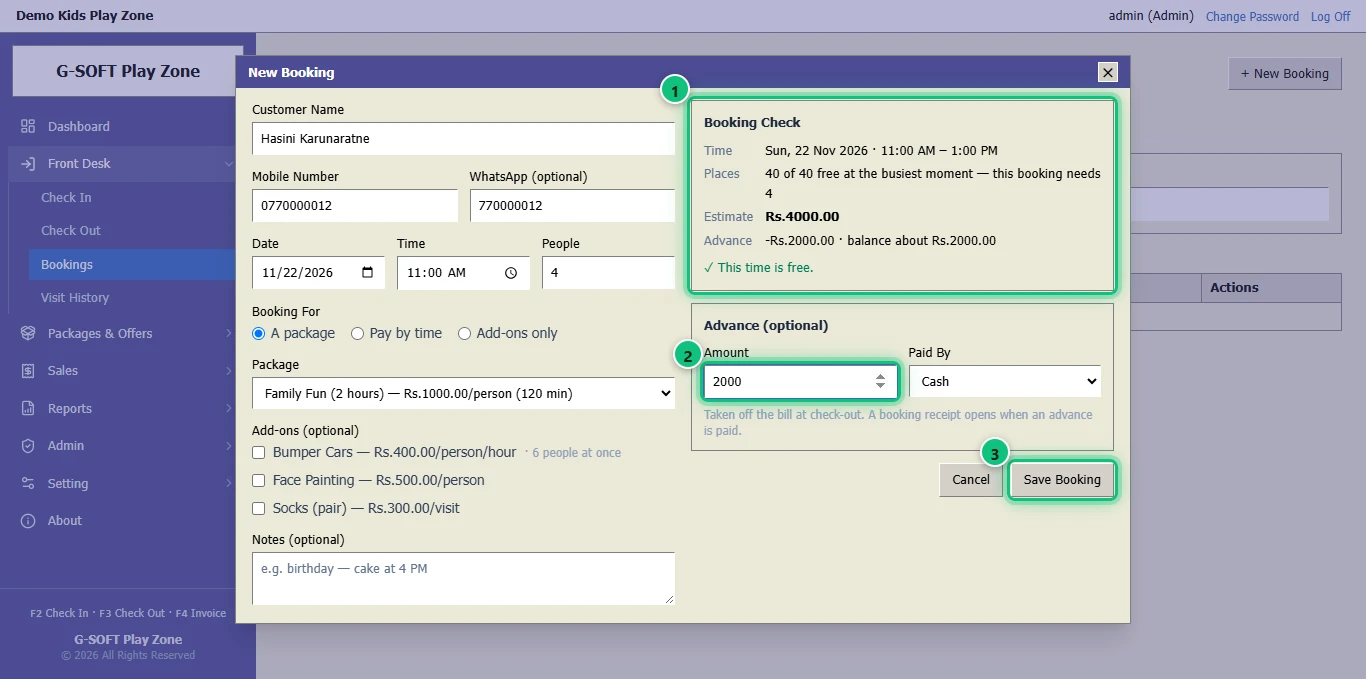
- Booking Check 1 shows the estimated bill and warns you if the place is full or closed at that time.
- Took an advance? Type the Amount 2 and how it was paid. It is taken off the bill at check-out.
- Click Save Booking 3.
- Booking Check 1 ඇස්තමේන්තු බිල පෙන්වන අතර, එම වේලාවේ ස්ථානය පිරී හෝ වසා ඇත්නම් අනතුරු අඟවයි.
- අත්තිකාරමක් ලැබුණාද? Amount 2 සහ ගෙවූ ආකාරය දෙන්න. පිටවන විට එය බිලෙන් අඩු වේ.
- Save Booking 3 ක්ලික් කරන්න.
Step 4 of 4පියවර 4 / 4
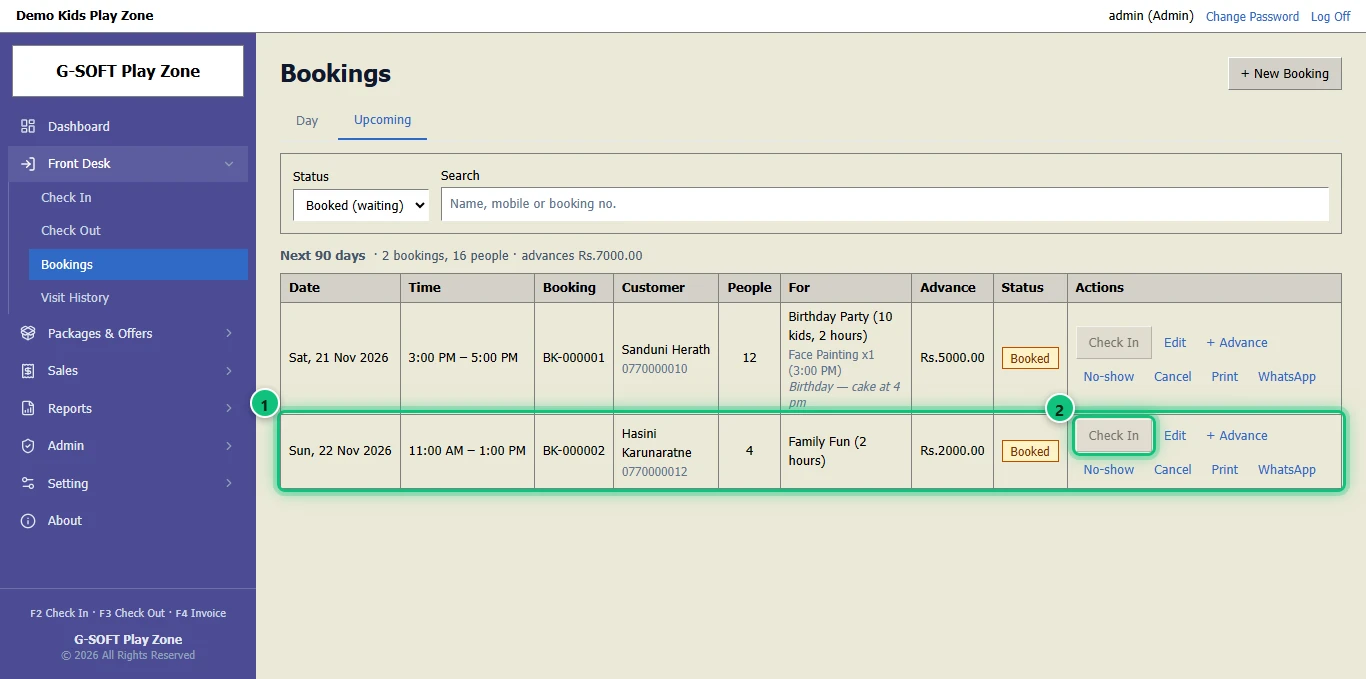
- The booking is listed 1. A booking receipt opens when an advance is paid; the customer can also get an SMS confirmation and reminder.
- When they arrive, click Check In 2: the check-in form opens already filled in.
- වෙන්කිරීම ලැයිස්තුගත වේ 1. අත්තිකාරමක් ගෙවූ විට වෙන්කිරීම් රිසිට්පතක් විවෘත වේ; ගනුදෙනුකරුට SMS තහවුරු කිරීමක් සහ සිහිකැඳවීමක් ද ලැබිය හැක.
- ඔවුන් පැමිණි විට Check In 2 ක්ලික් කරන්න: ඇතුළත් කිරීමේ පෝරමය දැනටමත් පුරවා විවෘත වේ.