
Home / Help / G-SOFT Play Zone
Topic 2 of 16මාතෘකාව 2 / 16
The main screen
After signing in you see the Dashboard: money taken, who is inside right now and how long they have left, and the menu that opens every part of the program.
Step 1 of 1පියවර 1 / 1
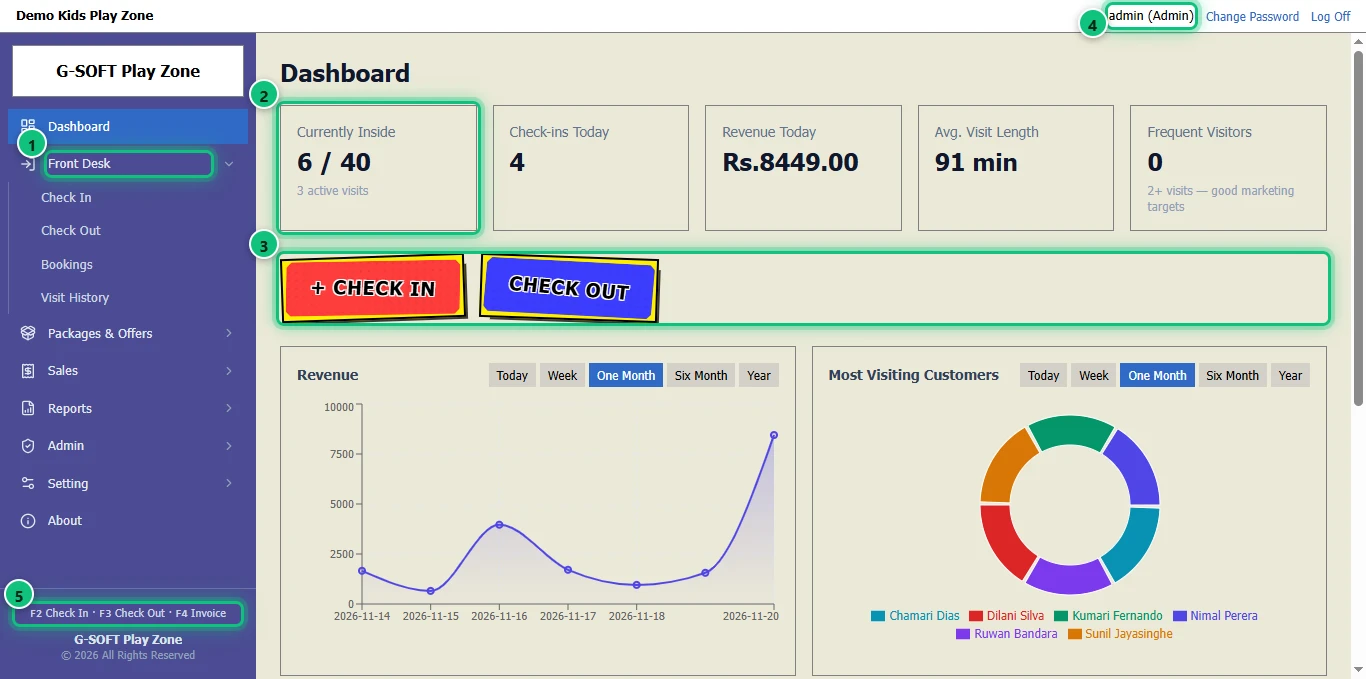
- The menu on the left opens every part of the program. Front Desk 1 has Check In, Check Out, Bookings and Visit History.
- Currently Inside 2 shows how many people are playing now, out of your maximum. The Dashboard also shows today’s check-ins and takings, charts, and further down a list of everyone inside with the time left on their package.
- The big CHECK IN and CHECK OUT buttons 3 open the front desk screens.
- The top bar shows who is signed in 4. Log Off signs you out.
- Shortcut keys 5 work from any screen: F2 Check In, F3 Check Out, F4 Invoice (snack shop).
- වම් පැත්තේ මෙනුව වැඩසටහනේ සෑම කොටසක්ම විවෘත කරයි. Front Desk 1 හි Check In, Check Out, Bookings සහ Visit History ඇත.
- Currently Inside 2 දැන් සෙල්ලම් කරන පුද්ගලයින් ගණන ඔබේ උපරිමයෙන් කීයද යන්න පෙන්වයි. Dashboard එක අද ඇතුළත් වීම් සහ ආදායම, ප්රස්ථාර, සහ පහළින් ඇතුළත සිටින සියලු දෙනා ඔවුන්ගේ පැකේජයේ ඉතිරි කාලය සමඟ පෙන්වයි.
- විශාල CHECK IN සහ CHECK OUT බොත්තම් 3 ඉදිරි මේසයේ තිර විවෘත කරයි.
- ඉහළ තීරුව ඇතුළු වී සිටින පරිශීලකයා 4 පෙන්වයි. Log Off මගින් ඉවත් වේ.
- කෙටිමං යතුරු 5 ඕනෑම තිරයක සිට ක්රියා කරයි: F2 Check In, F3 Check Out, F4 Invoice (කෑම කවුන්ටරය).