
Home / Help / G-SOFT Play Zone
Topic 3 of 16මාතෘකාව 3 / 16
Check in a visitor
When children arrive, check them in. A receipt with a QR code is printed — it is scanned at check-out to work out the bill.
Step 1 of 3පියවර 1 / 3
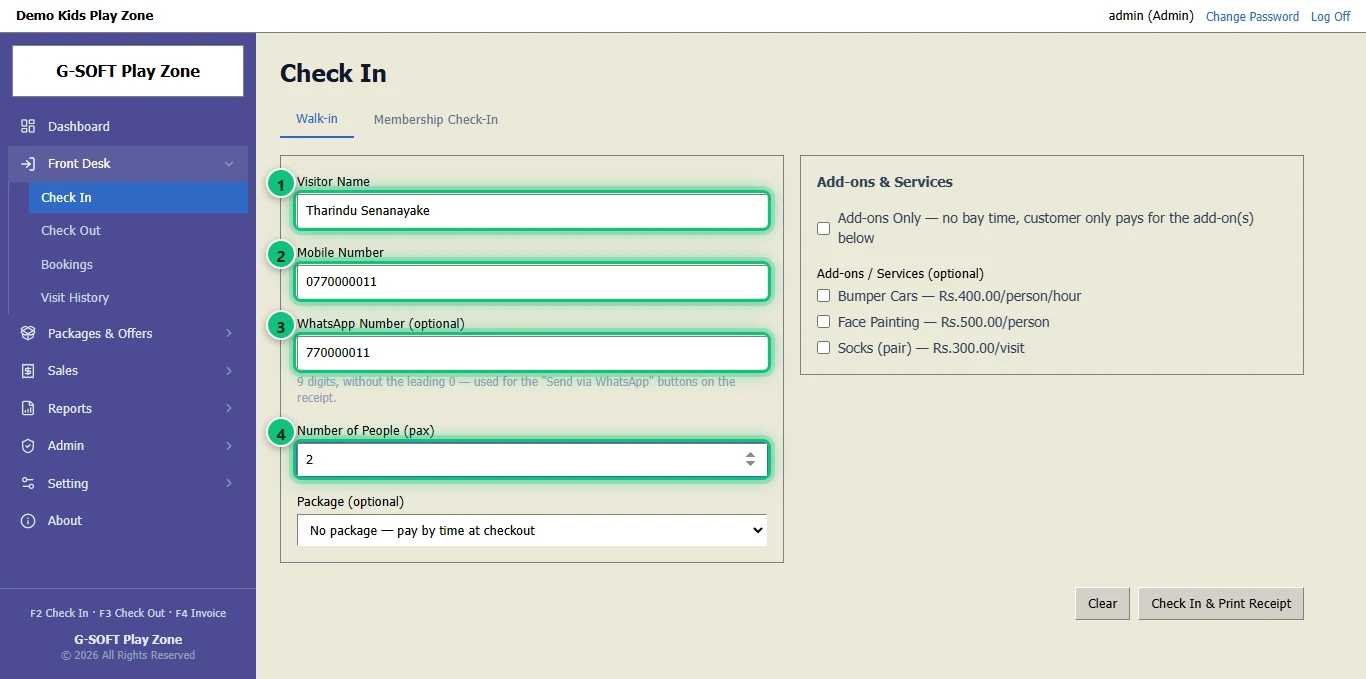
- Open Front Desk → Check In — or press F2.
- Type the Visitor Name 1 and Mobile Number 2. The WhatsApp number 3 is optional — 9 digits without the first 0; it lets you send the receipt by WhatsApp.
- Type the Number of People 4 — how many children are going in.
- Front Desk → Check In විවෘත කරන්න — නැතහොත් F2 ඔබන්න.
- Visitor Name 1 සහ Mobile Number 2 ඇතුළත් කරන්න. WhatsApp අංකය 3 අත්යවශ්ය නැත — මුල් 0 නැතිව ඉලක්කම් 9 යි; රිසිට්පත WhatsApp මගින් යැවීමට එය උපකාරී වේ.
- Number of People 4 — ඇතුළු වන දරුවන් ගණන — ඇතුළත් කරන්න.
Step 2 of 3පියවර 2 / 3
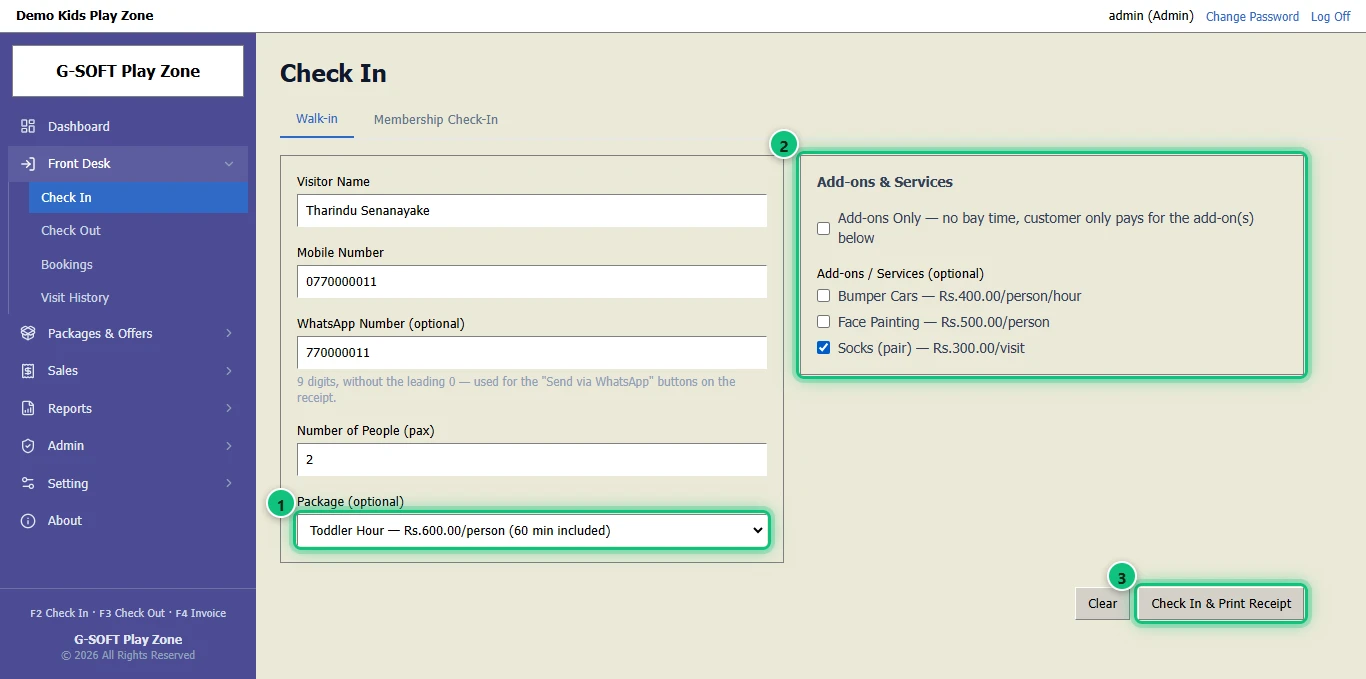
- Choose a Package 1 if they bought one — or leave No package and they pay by time at check-out.
- Tick any Add-ons 2 — socks, rides, face painting.
- Click Check In & Print Receipt 3.
- ඔවුන් පැකේජයක් ගත්තා නම් Package 1 තෝරන්න — නැතහොත් No package ලෙස තබන්න; එවිට පිටවන විට කාලය අනුව ගෙවයි.
- අවශ්ය Add-ons 2 සලකුණු කරන්න — මේස්, ක්රීඩා, මුහුණු පින්තාරු කිරීම.
- Check In & Print Receipt 3 ක්ලික් කරන්න.
Step 3 of 3පියවර 3 / 3
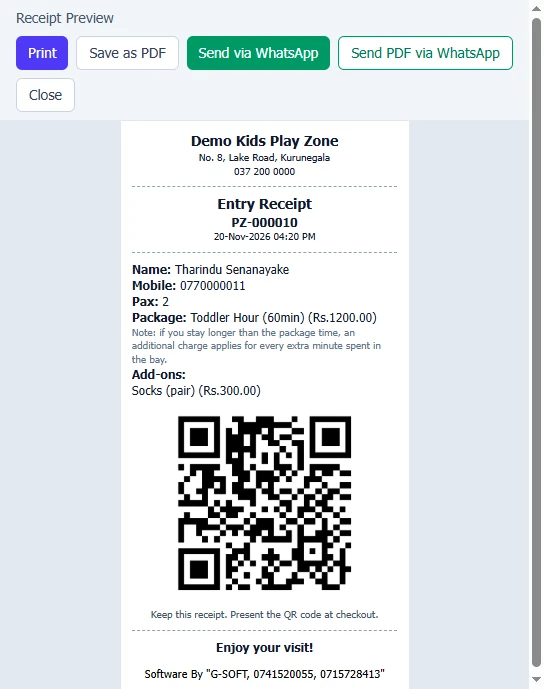
- The receipt opens, ready to print. Give it to the parent: its QR code is scanned at check-out. You can also send it by WhatsApp or SMS.
- රිසිට්පත මුද්රණයට සූදානම්ව විවෘත වේ. එය දෙමාපියන්ට දෙන්න: පිටවන විට එහි QR කේතය ස්කෑන් කරයි. WhatsApp හෝ SMS මගින් ද යැවිය හැක.