
Home / Help / G-SOFT Restaurant Manager
Topic 3 of 15මාතෘකාව 3 / 15
Take a table order
Open a table, add what the guests order with their choices, and send it to the kitchen.
Step 1 of 4පියවර 1 / 4
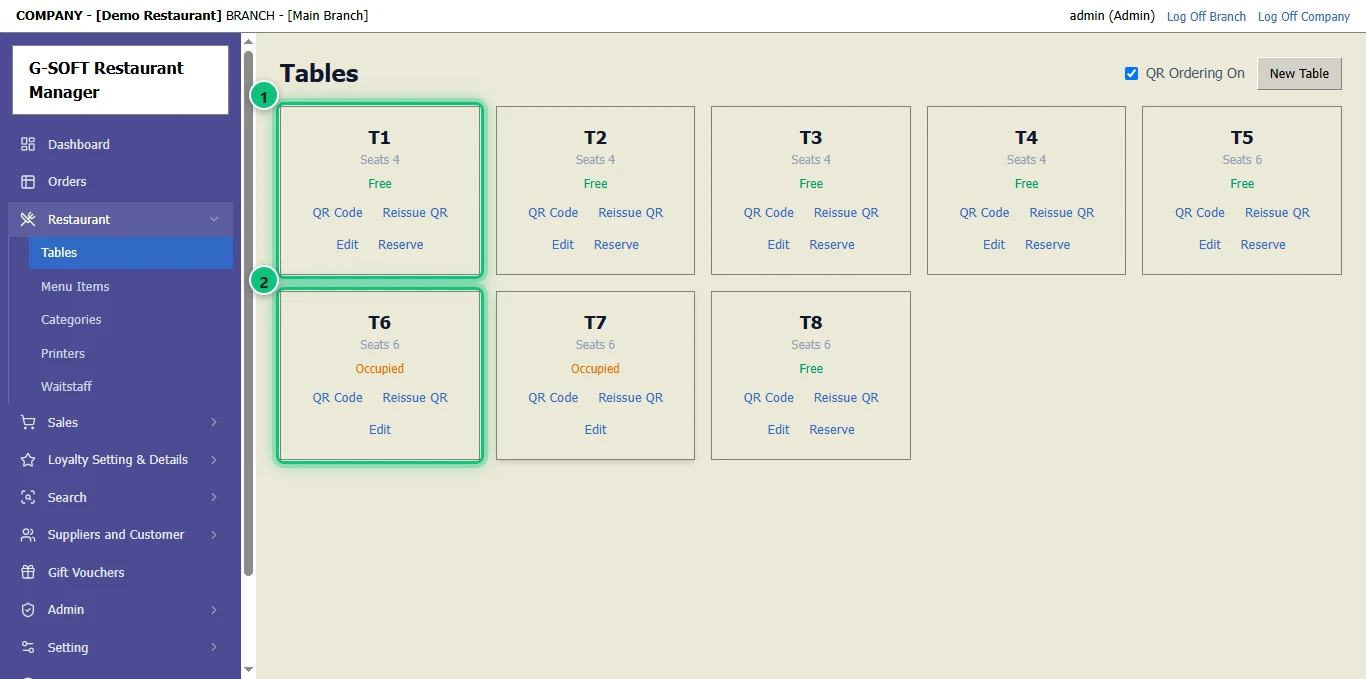
- Open Restaurant → Tables. A Free table 1 is empty; an Occupied table 2 has an open order.
- Click a free table to start its order — or click an occupied one to add to its order.
- Restaurant → Tables විවෘත කරන්න. Free මේසයක් 1 හිස්ය; Occupied මේසයකට 2 විවෘත ඇණවුමක් ඇත.
- ඇණවුම ආරම්භ කිරීමට හිස් මේසයක් ක්ලික් කරන්න — නැතහොත් ඇණවුමට එක් කිරීමට occupied මේසයක් ක්ලික් කරන්න.
Step 2 of 4පියවර 2 / 4
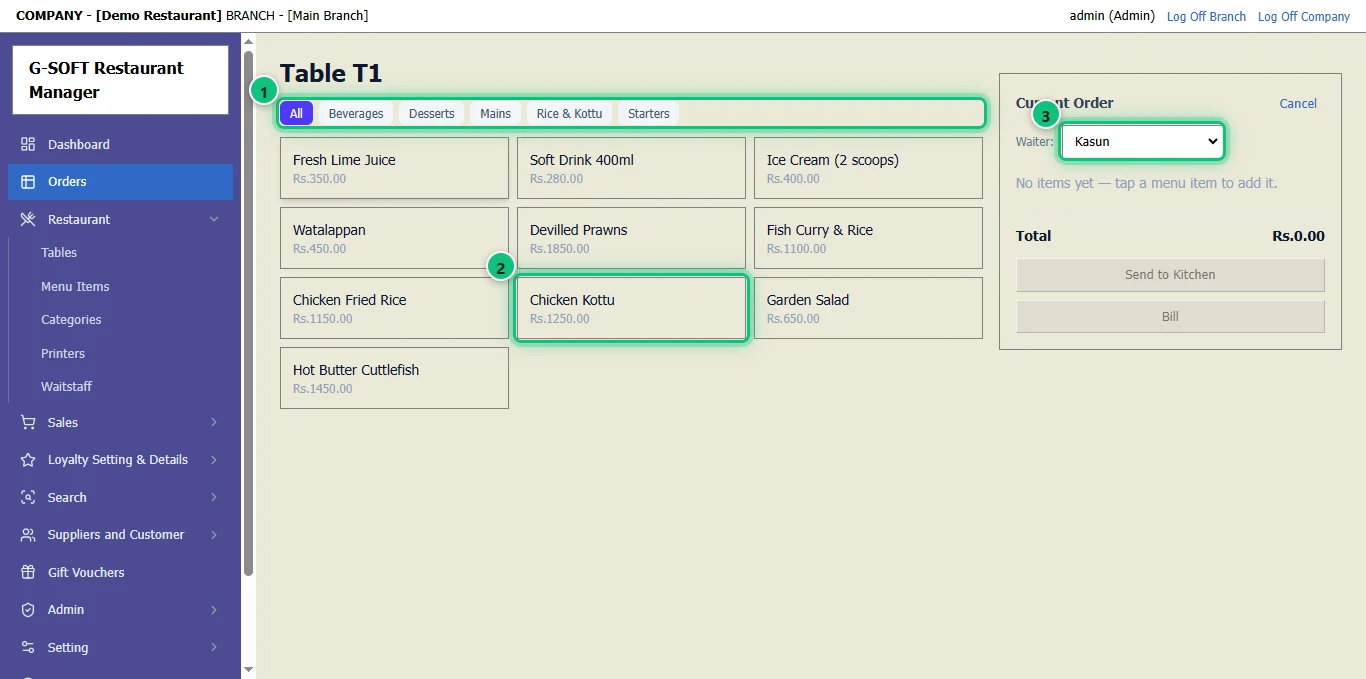
- The menu opens. Choose a category 1 to see only those dishes, or All.
- Tap a dish 2 to add it to the order.
- Choose the Waiter 3 serving this table.
- මෙනුව විවෘත වේ. එම කෑම පමණක් බැලීමට වර්ගයක් 1 තෝරන්න, නැතහොත් All.
- ඇණවුමට එක් කිරීමට කෑමක් 2 තට්ටු කරන්න.
- මෙම මේසයට සේවය කරන Waiter 3 තෝරන්න.
Step 3 of 4පියවර 3 / 4
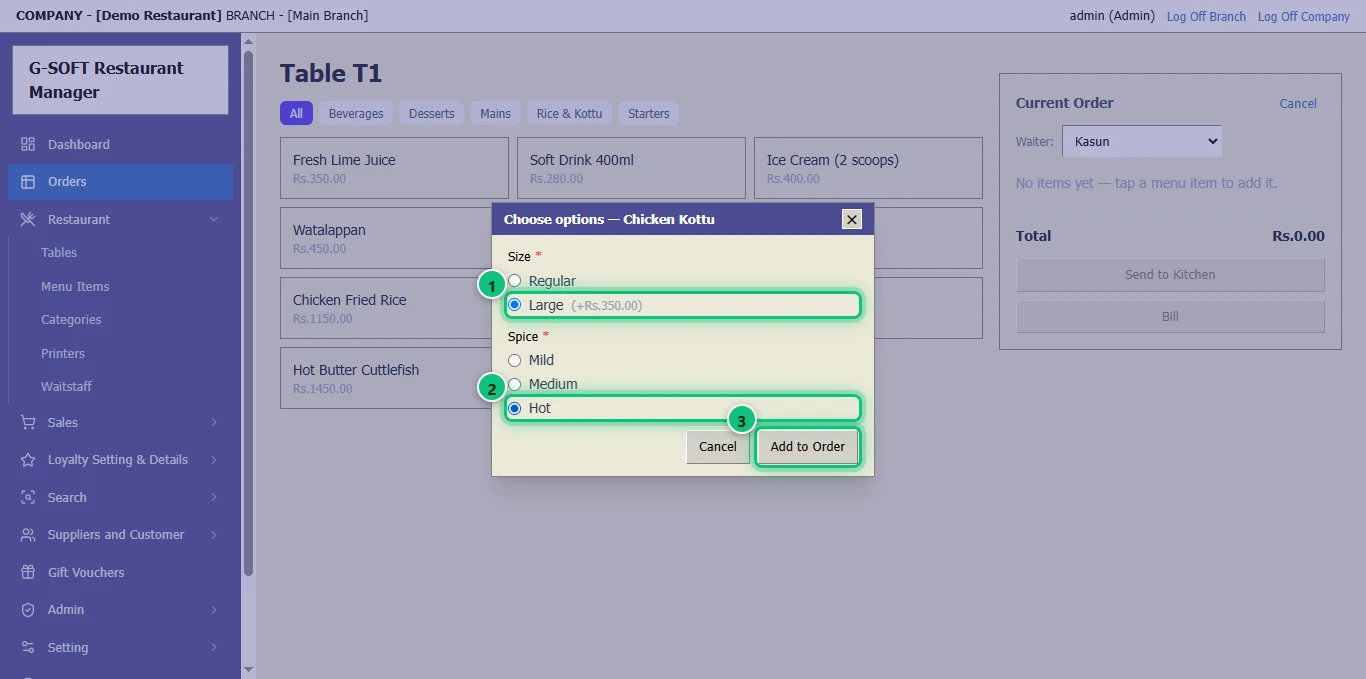
- A dish with choices asks for them — for example Large 1 (the extra price is added) and Hot 2.
- Click Add to Order 3.
- තේරීම් ඇති කෑමක් ඒවා අසයි — උදා: Large 1 (අමතර මිල එකතු වේ) සහ Hot 2.
- Add to Order 3 ක්ලික් කරන්න.
Step 4 of 4පියවර 4 / 4
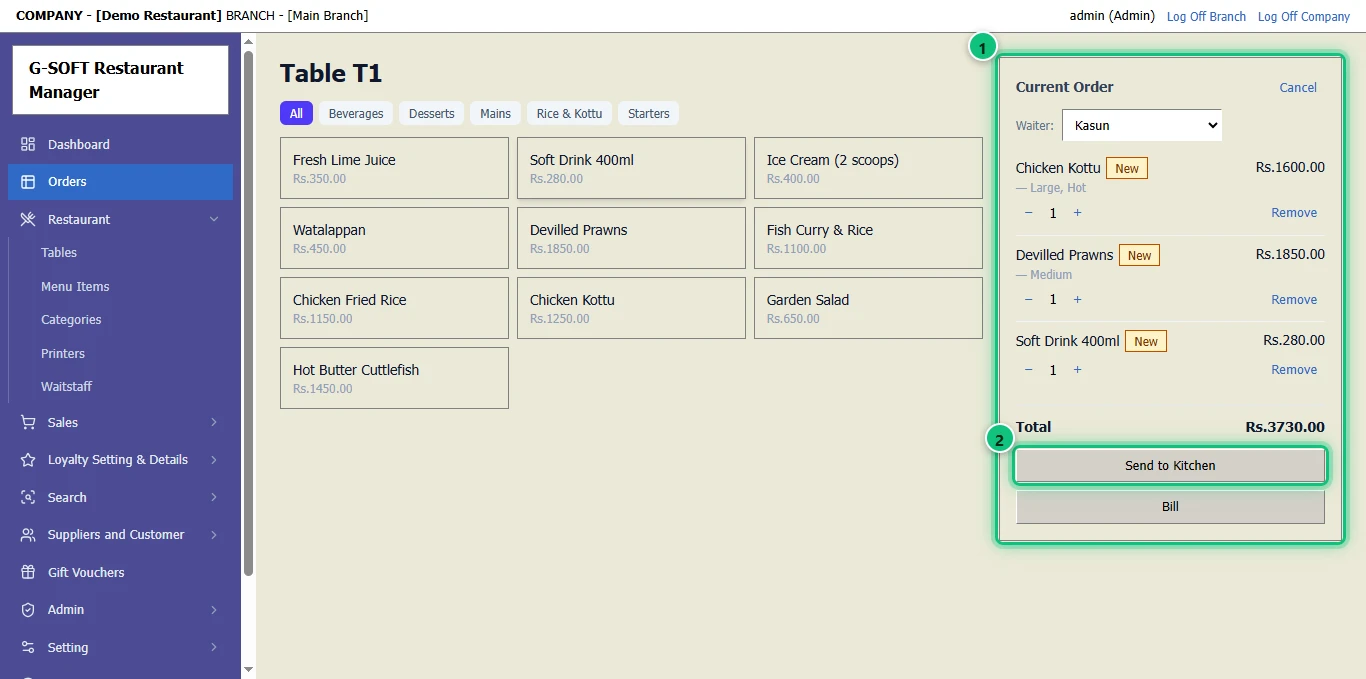
- The Current Order 1 lists everything with its choices and the total. Change a quantity or remove an item here.
- Click Send to Kitchen 2: the dishes print on the kitchen printer. Drinks and items that need no cooking are not sent.
- Current Order 1 සියල්ල ඒවායේ තේරීම් සහ මුළු මුදල සමඟ පෙන්වයි. මෙතැනින් ප්රමාණයක් වෙනස් කරන්න හෝ අයිතමයක් ඉවත් කරන්න.
- Send to Kitchen 2 ක්ලික් කරන්න: කෑම මුළුතැන්ගෙයි මුද්රණ යන්ත්රයේ මුද්රණය වේ. බීම සහ පිසීමට අවශ්ය නැති දෑ යවන්නේ නැත.